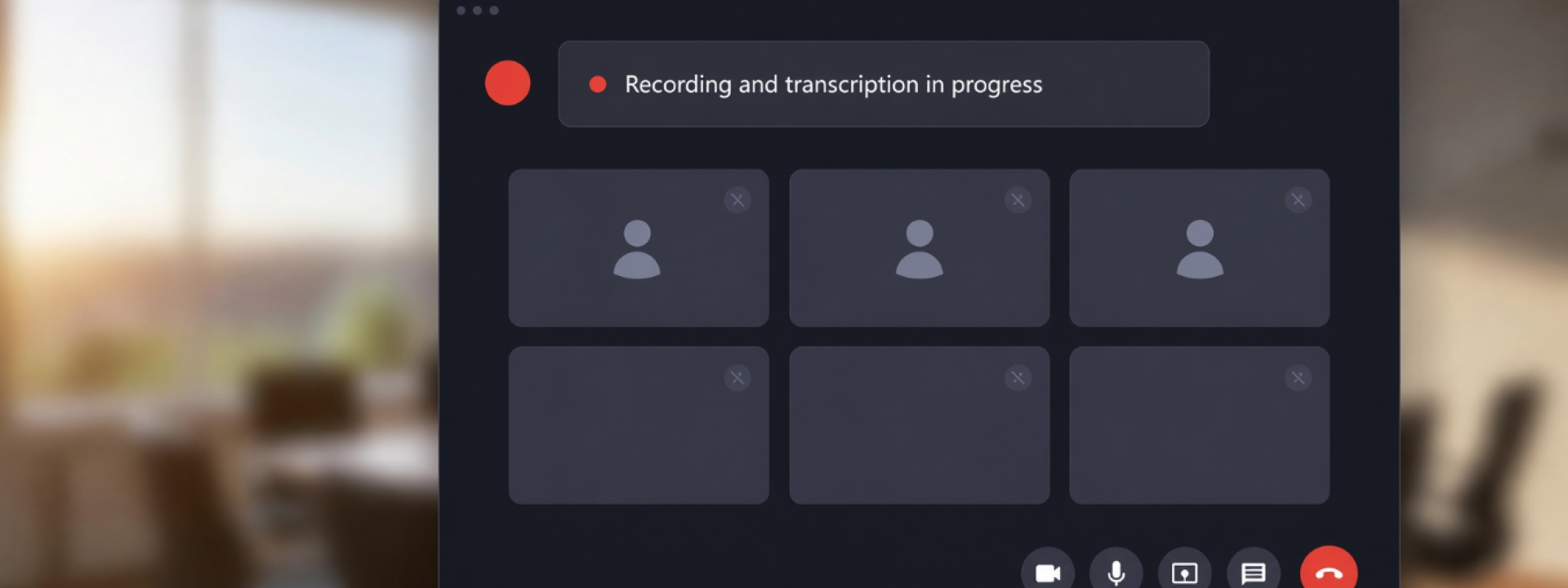
Between department huddles, vendor calls, committee meetings, and everything else that lands on a calendar in a rural health care organization, somebody is always stuck taking notes. That person is usually the one who most needed to be paying attention to the discussion instead.
Microsoft Teams can handle that for you. With a few settings turned on ahead of time, a meeting will record itself, produce a written transcript, and generate a set of notes with decisions and action items already pulled out. Nobody has to remember to press a button.
In practice it looks like this. The weekly operations huddle records itself and leaves behind a searchable transcript and a list of action items. The credentialing committee, which is a very different kind of conversation, gets configured differently on purpose. Both of those are one-time decisions made when the recurring meeting is created.
Here is how it works, what it costs, and what to think about before turning it on across the organization.

What You Get
Recording. A saved audio and video copy of the meeting, useful for anyone who could not attend or who needs to go back and confirm exactly what was said.
Transcription. A written, timestamped record of the conversation with speaker names attached. Searchable, which is often more useful than the recording itself.
Copilot and Facilitator. Facilitator takes notes during the meeting and builds them into a Loop component. Anyone in the meeting can watch that fill in as the discussion happens. The notes show up in the meeting chat, in the Notes pane, and on the Recap tab afterward, and they stay editable, so somebody can clean up a garbled action item or add the detail the discussion never quite spelled out. Copilot lets a licensed user ask questions like "what did I miss" or "list the action items" and get an answer drawn from the discussion.
What Has to Be True First
Your IT administrator has to allow these features. Recording, transcription, and Copilot are all governed by organization-wide policy in Microsoft 365. If your users open the meeting settings and find the options grayed out or marked with a lock icon, policy is the reason. Have your administrator check the transcription and recording settings in the Teams meeting policy assigned to those users. That is a quick change on their end, though policy updates can take a few hours to reach everyone.
Recording and transcription come with most Microsoft 365 plans. If your organization is licensed for Microsoft 365 Business Standard, Business Premium, or one of the enterprise or frontline plans, recording and transcription are already included. There is nothing extra to buy. If you are not certain which plan you are on or what it includes, our guide to Microsoft enterprise licensing covers how the plans differ and where the gaps usually show up.
The AI-generated notes require a separate license. Copilot and Facilitator require a Microsoft 365 Copilot license, and the license goes to the person who wants to use the feature, not to the meeting. Here is who needs one and who does not:
Who needs a Copilot license
Uses Copilot in or after a meeting
Yes. Each person needs their own license.
Turns Facilitator on
Yes, whether at scheduling or once the meeting is running.
Reads the notes Facilitator produces
No. Everyone else in the meeting can read them.
Organizes the meeting and sets the options
No. An unlicensed organizer can still turn Copilot on so licensed attendees can use it.
Facilitator only works on scheduled meetings. It cannot be added to channel meetings, Meet Now sessions, or Teams calls. That matters if your organization runs standing meetings out of a Teams channel, which many do. Microsoft has channel meeting support on its published roadmap, but until it ships, a recurring meeting that needs Facilitator has to be scheduled on the calendar rather than started from a channel.
Taken together, this means you do not have to license the whole organization to get value here. Licensing the handful of people who run the standing meetings that matter is usually where this starts.
Setting It Up
Open the meeting on your Outlook calendar and select Options. For a recurring meeting, open the whole series so the settings carry forward.


In the list on the left, select Recording and transcription. Under Record and transcribe automatically, you will find three choices:
Record and transcribe automatically
Three choices, and the one you pick per meeting is the whole decision.
Off
Nothing starts on its own. This is the default for new meetings.
Record and transcribe
Both start automatically when the meeting begins. The right pick for routine operational meetings.
Transcribe only
Transcription starts automatically and no recording is created or stored. Copilot and the AI-generated notes still work.
Transcribe only appears in the dropdown just when transcription is turned on in the meeting policy assigned to the organizer. It is also a recent addition, so a tenant that has not picked up the change yet may still show the older single toggle.
For a standard operational meeting, choose Record and transcribe. Confirm that the spoken language matches what people will actually be speaking.

Then find the Copilot and other AI section. Depending on your version of Teams it will either be further down the same screen or its own item in the left-hand list. Set Allow Copilot and Facilitator to During and after the meeting, and turn the Facilitator toggle on.
Select Apply. If the invitation has already gone out, send an update so the change sticks.
That is the whole setup. The next time that meeting starts, it handles itself.
Two Settings People Get Wrong
Choosing the wrong Copilot value. Setting aside Off, the dropdown offers two choices: Only during the meeting, and During and after the meeting.
Only during the meeting does exactly what it says. Licensed users can work with Copilot while the meeting is running, but that session runs on temporary speech-to-text data that is not saved. When the meeting ends, the Copilot history goes with it. If the point is to stop taking notes by hand, choose During and after the meeting, which relies on a saved transcript and leaves everything available afterward.
Turning Copilot off and wondering where recording went.
Check this first
In current versions of Teams, the Copilot setting and the recording and transcription settings are linked. Setting Allow Copilot and Facilitator to Off for a meeting also disables recording and transcription for that meeting, and the option cannot be changed once the meeting has already started.
If someone reports that the record button is missing and policy looks fine, this is where to look before opening a ticket.
A Note on Conference Rooms
Plenty of meetings in a small hospital are still six people around one table. Teams can transcribe those, but there is a catch worth knowing about.
Have one device in the room join the meeting, not six. Multiple laptops joining from the same room produce echo and feedback that make the audio unusable for everyone.
Understand also that when everyone is speaking into one microphone, the transcript captures the conversation but cannot tell you on its own which person said which part. Without speaker recognition configured, in-room audio is attributed to the room or to the account that joined, not to individuals. You still get a usable record of the discussion, but the speaker labels will not be dependable the way they are when everyone joins from their own device.
There are two ways around that. The free one: anyone in the meeting can open the transcript, find something they said, and select Identify speaker, then choose to update every instance. It takes about fifteen seconds and the correction sticks in the saved transcript. The other option is speaker recognition, where in-room participants enroll a voice profile and Teams attributes their speech automatically. That path depends on how the room is licensed and equipped, and it is worth evaluating deliberately rather than assuming it will just work.
Before You Turn It On Everywhere
A recording is a record. So is a transcript, and so are the AI-generated notes.
That matters more in health care than it does in most industries. A meeting where patient information comes up produces a recording that contains patient information, and audio or video of an identifiable patient is protected health information the same as a chart note is. Once it lands in OneDrive or SharePoint it is electronic PHI sitting in your Microsoft 365 tenant, subject to the same Security Rule safeguards as any other ePHI you store (45 CFR 164.306). The same care applies to personnel discussions and anything with legal exposure. Recordings and transcripts are also discoverable, and organizational retention policies apply to them automatically once they are stored.
None of that is a reason to avoid the feature. It is a reason to be deliberate about which standing meetings get which settings. Turning full automatic recording on for a weekly operations meeting is an easy call. A standing meeting where credentialing, patient cases, or employee performance come up deserves a conversation first.
This is where Transcribe only earns its keep. A transcript is still a record and still needs to be handled accordingly, but it is a smaller footprint than a video and audio file of the same conversation, and it is enough to keep Copilot and the AI-generated notes working after the meeting ends. For the meetings where a full recording feels like more exposure than the organization wants to carry, that middle setting is usually the right answer rather than turning everything off.
Teams does display a banner to all participants when recording is active, and notifies participants when automatic transcription starts. Announcing it verbally at the top of the meeting is still good practice, and in some situations it is expected.
Where the Files End Up
The recording, transcript, and notes are all available on the Recap tab of the meeting on your calendar, and they are posted in the meeting chat.
For a normal scheduled meeting, the recording is saved to the meeting organizer's OneDrive, in a folder named Recordings. That holds true even when somebody else started the recording. Meetings held inside a Teams channel work differently: those recordings go to the channel's SharePoint document library instead. Invited participants get access automatically. External participants do not, and have to be granted access after the fact.
One question that comes up often: anything an individual types to Copilot during a meeting is private to that person. It is not shared with the rest of the meeting unless they choose to share it.
Getting It Turned On
If your organization is already on Microsoft 365 and you are not sure whether these features are enabled, we can help sort that out. We can also walk your recurring meeting calendar with you and map each standing meeting to the right setting, so the operations huddle records itself, the sensitive committee transcribes only, and the ones that should leave no record behind are set that way on purpose rather than by accident.
visuaFUSION Systems Solutions works exclusively with rural health care organizations, and licensing and Microsoft 365 configuration is a routine part of what we do. It is also worth knowing that independent Critical Access Hospitals, Rural Emergency Hospitals, and certain other rural providers may qualify for Microsoft nonprofit pricing, which carries discounts across a range of Microsoft products including Copilot, and the Rural Health Resiliency Program is the usual path to confirming that eligibility. Program details are subject to change, with eligibility criteria set by Microsoft, so it is worth confirming where your organization stands before you plan around it.
Contact us to talk through what your organization already has and what it would take to put it to work.
Sources
- Microsoft Learn, "Manage Microsoft 365 Copilot in Teams meetings and events": https://learn.microsoft.com/en-us/microsoftteams/copilot-teams-transcription
- Microsoft Support, "Facilitator in Microsoft Teams meetings": https://support.microsoft.com/en-us/teams/copilot/facilitator-in-microsoft-teams-meetings
- Microsoft Support, "Frequently asked questions about agents in Microsoft Teams": https://support.microsoft.com/en-us/teams/platform/frequently-asked-questions-about-agents-in-microsoft-teams
- Microsoft Learn, "Manage Teams meeting recording and transcription options for sensitive meetings": https://learn.microsoft.com/en-us/microsoftteams/manage-meeting-recording-options
- Microsoft Learn, "Manage Teams recording policies for meetings and events": https://learn.microsoft.com/en-us/microsoftteams/meeting-recording
- Microsoft Learn, "Teams meeting recording and transcript storage and permissions in OneDrive and SharePoint": https://learn.microsoft.com/en-us/microsoftteams/tmr-meeting-recording-change
- Microsoft Learn, "Tenant administration control for voice recognition (voice profile) in Teams Rooms": https://learn.microsoft.com/en-us/microsoftteams/rooms/voice-recognition
- Microsoft Support, "Use Microsoft Teams Rooms to identify in-room participants in a meeting transcription": https://support.microsoft.com/en-us/teams/calls-devices/use-microsoft-teams-intelligent-speakers-to-identify-in-room-participants-in-a-meeting-transcription
- Microsoft 365 Message Center, MC1283816, "Transcribe only" automatic meeting option (accessible to tenant administrators in the Microsoft 365 admin center)
- Microsoft Nonprofits, "Grants and credits eligibility": https://www.microsoft.com/en-us/nonprofits/eligibility
- Microsoft, "Rural Health Resiliency Program": https://www.microsoft.com/en-us/ai/health/rural-health-cyber-resiliency
- Electronic Code of Federal Regulations, 45 CFR 164.306, Security standards: General rules: https://www.ecfr.gov/current/title-45/subtitle-A/subchapter-C/part-164/subpart-C/section-164.306
This article is for informational purposes only and does not constitute legal or compliance advice. Covered entities and business associates should consult qualified legal counsel or compliance professionals before making decisions pertaining to HIPAA or IT infrastructure.
Licensing is one of the few places a rural facility can recover real money without cutting anything. Our overview of funding programs for rural health care covers the others, including the Rural Health Transformation Program, SHIP, and the FCC Rural Health Care Program.
- Log in to post comments